I am currently experimenting with using a virtual machine for my development. I have earlier done it through OSX/Win by the means of Parallells but now I am trying a Win/Win solution with Hyper-V.
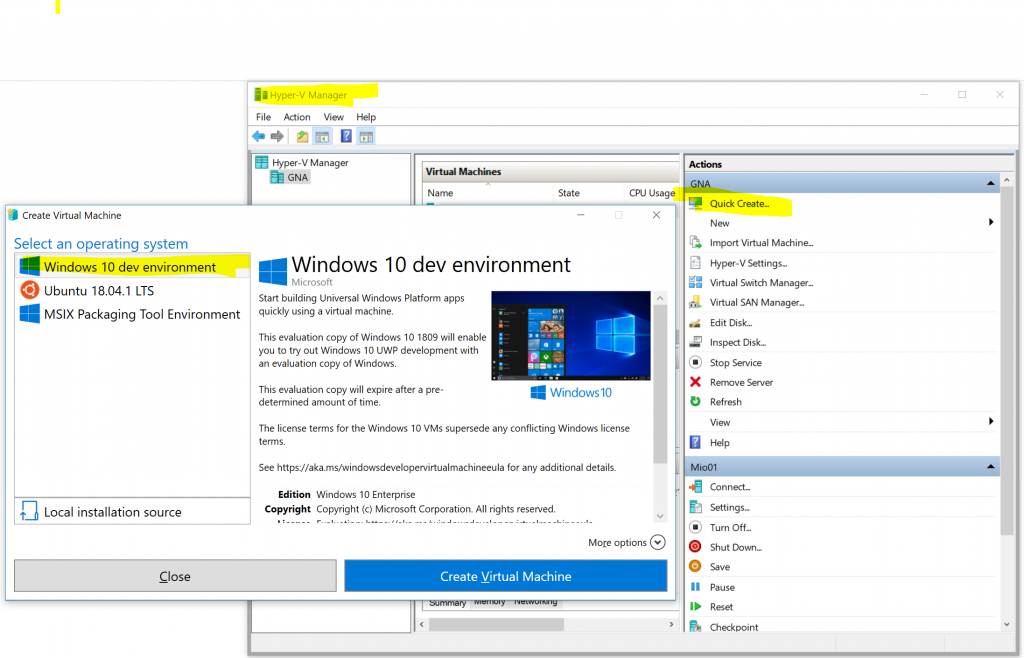
Every 30 days or third month, I have seen both, is for how long the license is valid, I do a Hyper-V Manager->Quick create->Windows 10 dev environment and 30 minutes later, or so, the new VM is up and running.
Microsoft packages and delivers the new download on the very day of expiry so it is not possible to download a VM a day before and prep it. It means the VM is out of date the moment you have installed the new one.
But there is a work around, open a console in admin and
1
slmgr –rearm
and you have 90(?) new days. This can only be done once per VM.
Also note that the Hyper-V manager gui, as depicted below, does not refresh its “Create virtual-machine”-content so the date of the template might be old. Restart (the host machine?) to refresh it.
The mandatory screen shot.
It comes with Visual studio, Visual studio code, Powershell 6 and some dotnet preinstalled. All I have to do is start VS and tell it to update itself..
I have checked that all chocolatey packages I reference are “trusted package”. I cannot know if they packages remain “trusted package” at the time you are reading this. The choice is yours.
To make it even cooler one can install more stuff, like oh-my-posh. For it to work one needs a new font “Cascadia Code”, and Windows terminal has to be updated to use it.
1
"fontFace": "Cascadia Code PL"
1
Import-Module oh-my-posh
1
Set-ThemeParadox
I like to have a clear separator by every promp. So I might add a newline before the prompt
I believe Keyboard1337 is a zip if you git clone BecarroInamovible. If so, you don’t have to download Keyboard1337.
Otherwise download
1
Keyboad 1337.zip
. Unblock. Unpack. Install. Run Keyboard 1337\l337\setup.exe (yupp. there’s a typo there) Language preferences -> Keep English(Sweden) and English(United States). The latter is Keyboard1337
Due to some reason unknown to man there is in Windows the idea of every window to have a title bar, unusable for anything but dragging and double clicking and holding approximately four buttons. Chrome and Opera have reused the space for tabs, well done!
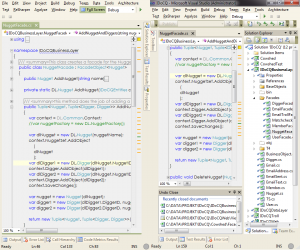
Visual studio has its own solution. Press shift-alt-enter (or somewhere on the menu) and the application maximizes itself to get rid of caption bar and borders. Unfortunately the menu is still visible (it should be able to set it to auto hide) . Then remove the tool bars and set the tool windows to auto hide; almost everything is now the editor.
Now shift back to the space wasting layout (shift-alt-enter) and the old setting is back. So not only do we get more working space, we get a fast layout switch too the same way it switches layout when and when not debugging.
Advise: before attempting parallel programming – read up on the subject!
Normally we program by intellisense and the assumption that the name of the method does what we suppose it does. It can be thought of as lazy, that we don’t grok the framework before we start using it. But is does seem to work.
This is not the case with parallel programming. Do it without understanding it and you’re down the slippery slope.
I have read one other part (looking for interface and inheritance and virtual) of the first release and it was also good. If the rest of the book is as well written I suggest everyone to get a copy.
If you don’t understand what “destroying the exception stack” means you probably don’t want to destroy it and this recommendation is even more something to heed.
List<T> is the work horse of list handling in dotnet. But there are several more to choose from; ArrayList, Hashtable, SortedList, DictionaryEntry, ListDictionary, StringCollection, NameValueCollection, StringDictionary, HybridDictionary andOrderedDictionary for instance. Several of these are replaceable by generic lists so don’t memorise them.
The text and code below is only tested for Winform. WPF might behave differently; hopefully behaves differently.
I won’t go into any details on why the ISite.DesignMode is good and sometimes even crucial to have. It is much better done in the link at the bottom.
First out there is unfortunately a caveat with DesignMode, it doesn’t work with inherited forms and user controls. This is a problem since I always inherit from the base form in my projects and tell others to do the same. It also doesn’t work inside the form’s or the user control’s constructor and then by any method that is called by the constructor. Long call chains to might make this hard to track down.
Secondly there is another way to check for design mode and that is to check for the LicenseManager.UsageMode but this in turn doesn’t work in event handlers.
Thirdly one can set a flag in the base Form and base UserControl. But this doesn’t solve the problem since we cannot be sure with what to set this value.
Fourthly is a workaround where one can check for the name of the process itself which is Visual Studio’s process name (devenv) in case of design mode. This process name might change in future releases of Visual Studio and is also different for other IDEs.
Fifthly is other process information like the name of the module and stuff. Check into the Process and you’ll see that the app is called MyApp.vshost.exe while being debugged.
The fourth solution (processname=devenv) seems to be the most viable but I believe there is something useful in the fifth (other process information). There must be a way to notice that the name of all your code doesn’t match the name of the running environment; namespace, assembly name, whatever. I still haven’t figured out how though.
Below is some code to copy-paste.
It is not 100% correct though since the DesignMode property isn’t virtual. This might end with some really tough-to-track-down bugs where one iterates the forms but don’t get the overloaded DesignMode flag. The code also doesn’t promise to work forever since there is a magic string naming the name of the Visual Studio process.
publicpartialclass MyAppForm : System.Windows.Forms.Form{protectednewbool DesignMode{get{return HelperMethods.IsDesignMode(this);}}}
publicpartialclass MyAppUserControl : UserControl{protectednewbool DesignMode{get{return HelperMethods.IsDesignMode(this);}}}
class HelperMethods{publicstaticbool IsDesignMode(System.ComponentModel.Component x){var site = x as System.ComponentModel.ISite;return( null == site ? false : site.DesignMode ) ||System.ComponentModel.LicenseManager.UsageMode == System.ComponentModel.LicenseUsageMode.Designtime ||System.Diagnostics.Process.GetCurrentProcess().ProcessName == "devenv";}}
Error 4 The type or namespace name ‘AccountController’ could not be found (are you missing a using directive or an assembly reference?) C:\myprojectpath\MvcApplication1.Tests\Controllers\AccountControllerTest.cs 317 24 MvcApplication1.Tests
Since many years – many years before I noticed it – has it been possible to dump the text of a message box with ctrl-c.
Example: an application throws an exception and a dialogue with an error message pops up. Instead of dumping the screen and attaching the picture file just copy the text with ctrl-c and past it in you email.